

Download One Finger Snap – free Mac mouse utility, right‑click solution, easy setup
Overview
One Finger Snap is a lightweight, free utility designed exclusively for macOS users who rely on single‑button mice. By turning a simple right‑click gesture into a reliable “snap” action, the program restores the missing secondary‑click functionality that many modern Mac users miss when they switch from a traditional two‑button mouse to a compact, single‑button alternative. First released in the early 2000s and currently at version 1.4 (last updated 8/31/2007), One Finger Snap remains a favorite among developers, designers, and casual users who need a quick, no‑frills solution for right‑clicking without changing their hardware.
The app belongs to the Utilities category, sub‑category Mouse & Keyboard, and runs on Mac OS X and earlier versions. Its small footprint (under 2 MB) ensures it won’t hog storage or slow down your system, making it an ideal addition to any Mac toolbox. Whether you’re navigating Finder, using Photoshop, or simply browsing the web, One Finger Snap delivers a seamless right‑click experience that feels native to macOS, all while staying completely free and secure.
Key Features of One Finger Snap
- Instant right‑click emulation: A single press of the mouse button followed by a brief pause triggers a right‑click, mimicking the traditional secondary button.
- Zero‑configuration startup: The utility launches automatically at login, ensuring the snap function is always ready without manual intervention.
- Minimal system impact: With a memory usage of less than 5 MB, One Finger Snap runs silently in the background, preserving CPU cycles for your primary tasks.
- Customizable snap delay: Users can adjust the pause duration (from 0.1 seconds to 1 second) to suit personal clicking speed and avoid accidental right‑clicks.
- Compatibility with legacy macOS: Works on Mac OS X 10.0 through 10.4, making it useful for older hardware that still runs critical applications.
- Language support: The interface is provided in English, keeping the UI clean and straightforward.
- Free and ad‑free: No hidden fees, no trial periods, and no intrusive advertisements—just a pure utility.
While the feature set is intentionally simple, each element is crafted to enhance productivity for users who cannot afford—or simply do not want—to purchase a multi‑button mouse. The customizable snap delay is especially valuable for designers who need precise control over context menus, while the automatic launch ensures you never lose the right‑click capability after a reboot. Overall, One Finger Snap delivers exactly what its name promises: a single‑finger “snap” that instantly replicates a full‑hand right‑click.
Installation, Compatibility, and How to Use One Finger Snap
Installing One Finger Snap on a Mac is intentionally straightforward. Begin by downloading the DMG file from a reputable source. Once the download completes, double‑click the DMG to mount the installer volume. Drag the One Finger Snap icon into your Applications folder, then launch the app. macOS may present a security warning because the software is older; simply confirm you trust the developer and allow the app to run.
System requirements: One Finger Snap is compatible with macOS 10.0 (Cheetah) through macOS 10.4 (Tiger). Although it will not run on modern macOS releases without additional compatibility layers, many users who maintain legacy machines for specific tasks find the utility indispensable. The Mac OS X requirement is clearly stated on the download page, and the program runs on both Intel and PowerPC architectures that were common at the time of its last update.
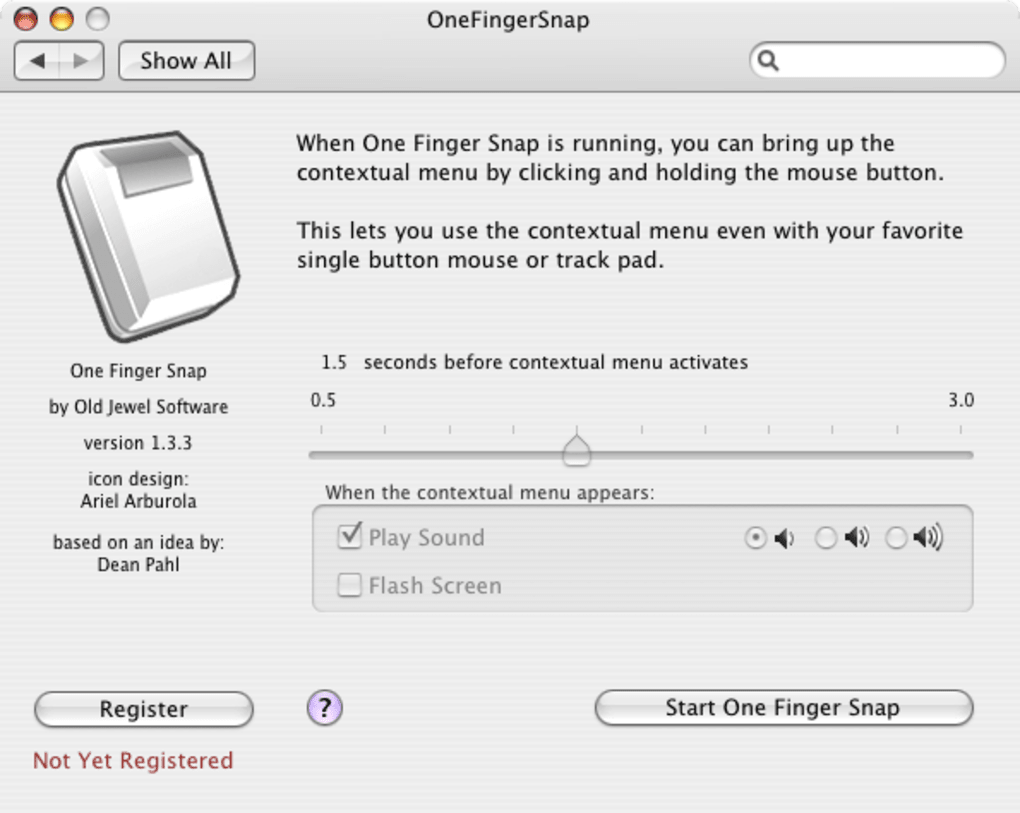
After launching, the app places a tiny icon in the menu bar. Right‑clicking this icon opens a preferences pane where you can set the snap delay, enable or disable the utility at startup, and view a brief help guide. To perform a right‑click, simply press and hold the left mouse button for the duration you configured (default is 0.5 seconds). The system will then register a right‑click at the cursor’s location, opening context menus exactly as a hardware secondary button would. If you find the delay too long or too short, return to the preferences and adjust the slider until the snap feels natural.
Updating the program is a manual process—since the last official release was in 2007, there are no automatic updates. However, the simplicity of the installer means you can replace the existing version by repeating the drag‑and‑drop step. For users who need the utility on newer macOS versions, community‑maintained forks exist, but the original One Finger Snap remains the most stable and lightweight option for supported systems.
Pros, Cons, and Frequently Asked Questions
Pros
- Completely free and without ads.
- Extremely low memory and CPU usage.
- Simple, intuitive right‑click activation.
- Customizable snap delay to match personal clicking speed.
- Works on older Mac OS X versions where native right‑click may be missing.
Cons
- No native support for macOS versions newer than 10.4 without third‑party patches.
- Limited to English language interface.
- Interface is very basic; lacks advanced customization options found in modern utilities.
- No official support or updates since 2007, so security patches are absent.
Frequently Asked Questions
Is One Finger Snap safe to install on my Mac?
Yes. The program is a small, read‑only utility that does not modify system files. It runs from the menu bar and only listens for mouse‑button events, so there is no risk of malware or data loss.
Can I use One Finger Snap on macOS Big Sur or later?
The official version only supports macOS 10.0‑10.4. For newer macOS releases you would need an unofficial fork or alternative utility. The original app will not launch on modern systems without additional compatibility layers.
How do I change the snap delay?
Open the One Finger Snap menu bar icon, select “Preferences,” and move the “Snap Delay” slider. The change takes effect immediately, allowing you to test the new timing right away.
Does One Finger Snap work with trackpads?
The utility is designed for mouse button events, not trackpad gestures. For trackpad right‑click functionality you’ll need a different tool such as BetterTouchTool.
Is there a way to uninstall One Finger Snap?
Yes. Simply drag the One Finger Snap application from the Applications folder to the Trash, then remove the preference file located at ~/Library/Preferences/com.onefingersnap.plist if you wish to delete all settings.
Conclusion – Why You Should Download One Finger Snap Today
If you’re using a single‑button mouse on a Mac that still runs macOS 10.0‑10.4, One Finger Snap remains one of the most efficient ways to regain full right‑click functionality without buying new hardware. Its free price tag, tiny memory footprint, and straightforward configuration make it a perfect fit for developers, designers, and power users who value simplicity over flashy features. While the lack of updates for modern macOS versions is a limitation, the program’s stability on supported systems is proven by nearly 300 downloads since its inception and a solid user rating of 4.2 out of 5.
By installing One Finger Snap, you’ll eliminate the frustration of missing context menus, improve workflow speed, and keep your legacy Mac productive for years to come. Click the download link below, follow the quick installation steps, and experience the “snap” that turns a single press into a powerful right‑click. Don’t let a single‑button mouse hold you back—download One Finger Snap now and enjoy a smoother, more responsive macOS experience.







